
Link to HTML Build of my game on Itch.io :
https://friede0666.itch.io/topdownprototype
The third prototype for my portfolio consists of a Top-Down Shooter, a genre of game in which the player character is controlled from a top-down perspective and has to defeat enemies by shooting them. Once again I chose to draw my assets for this game in a pixel art style as I had a lot of fun doing so for the previous game.
I started by assigning a CapsuleCollider2D as well as a RigidBody2D to a game object made up of some placeholder sprites, and making scripts to control them.
playerMovement
using System.Collections;
using System.Collections.Generic;
using UnityEngine;

public class playerMovement : MonoBehaviour
{
    public float speed;
    private Vector3 movement;
    private Rigidbody2D rb;
    private Vector2 min, max;
    private GameObject footsteps;
    private Animator anim;

    public bool moving;

    void Start()
    {
        anim = GetComponent<Animator>();
        rb = GetComponent<Rigidbody2D>();

        min = Camera.main.ViewportToWorldPoint(new Vector2(0.05f, 0.1f));
        max = Camera.main.ViewportToWorldPoint(new Vector2(0.95f, 0.9f));
    }

    // Update is called once per frame
    void FixedUpdate()
    {
        movement = new Vector3(Input.GetAxisRaw("Horizontal"), Input.GetAxisRaw("Vertical"), 0);
        rb.velocity = movement * speed * Time.fixedDeltaTime;

        transform.position = new Vector3(Mathf.Clamp(transform.position.x, min.x, max.x), Mathf.Clamp(transform.position.y, min.y, max.y), transform.position.z);

        if (rb.velocity.sqrMagnitude != 0)
        {
            moving = true;
            transform.Find("footsteps").gameObject.SetActive(true);
        }

        else
        {
            transform.Find("footsteps").gameObject.SetActive(false);
            moving = false;
        }

        if(rb.velocity.x > 0)
        {
            anim.SetInteger("WalkState", 1);
        }
        if (rb.velocity.x < 0)
        {
            anim.SetInteger("WalkState", -1);
        }
        if (rb.velocity.sqrMagnitude == 0)
        {
            anim.SetInteger("WalkState", 0);
        }
    }

}
The script controls the character movement by setting a Vector3 “movement” variable equal to horizontal input for the x axis, vertical input for the y axis and setting the z axis to 0. The velocity attribute of the player’s RigidBody2D component is then set to the product of the movement variable, a float variable “speed” and a fixed change in time.
Later on after animating the player character I included a reference to the animator so that I could control animation parameters from within the script. This allowed me to use conditional statements to change a “WalkState” parameter of the character based on their velocity. Since my character has a constant speed I decided to make the sound effects of the footsteps a repeating loop and enable them based on a bool that kept track of if the player is currently moving ” if (rb.velocity.sqrMagnitude != 0) “
playerShoot
using System.Collections;
using System.Collections.Generic;
using UnityEngine;

public class playerShoot : MonoBehaviour
{
    public GameObject bullet;

    // Update is called once per frame
    void Update()
    {
        if (Input.GetMouseButtonDown(0))
        {
            generateBullet();
        }
    }

    void generateBullet()
    {
        Vector3 mouseDirection = Input.mousePosition - Camera.main.WorldToScreenPoint(transform.position);
        float angle = Mathf.Atan2(mouseDirection.y, mouseDirection.x) * Mathf.Rad2Deg + 180;
        transform.rotation = Quaternion.AngleAxis(angle, Vector3.forward);

        GameObject projectile = Instantiate(bullet, transform.position, Quaternion.AngleAxis(angle, Vector3.forward));
        FMODUnity.RuntimeManager.PlayOneShot("event:/Player_Shoot", transform.position);
    }
}
The playerShoot script allowed the player, upon pressing the mouse button, to spawn a prefab of a bullet. This bullet was instantiated at the location of the player with the rotation set to the current angle at which the mouse was. To apply rotation to the object I had to use Quaternions which are Unity’s way of representing all rotations. This was a bit tricky to wrap my head around at first but with the help of the scripting API and the tutorials I managed to gain a decent understanding of them fairly quickly. The same bit of code was used to rotate the player weapon in the direction of the mouse.
The script was also responsible for playing a crossbow shooting sound effect upon spawning the bullet.
playerBullet
using System.Collections;
using System.Collections.Generic;
using UnityEngine;

public class playerBullet : MonoBehaviour
{
    private Vector3 mousePosition;
    private Vector2 bulletDirection;
    public float bulletSpeed;

    void OnEnable()
    {
        mousePosition = Input.mousePosition - Camera.main.WorldToScreenPoint(transform.position);
        bulletDirection = mousePosition - transform.position;
        bulletDirection.Normalize();

        GetComponent<Rigidbody2D>().velocity = bulletDirection * bulletSpeed;

        Invoke("destroyThis", 1.5f);
    }

    // Update is called once per frame
    void destroyThis()
    {
        Destroy(gameObject);
    }
}
This simple script propelled the bullet forward in the direction where the mouse cursor was. This was done by taking the mouse position as an input and assigning it to a Vector3 then finding the difference between the mouse position and the current position of the bullet and making that the bulletDirection. This would then be multiplied by a speed variable. Invoke was used again to call a method that would destroy the bullet after a delay of 1.5 seconds to make ensure there would be no RAM problems if the player played long enough.
reticule
using System.Collections;
using System.Collections.Generic;
using UnityEngine;

public class reticule : MonoBehaviour
{
    private Vector2 mousePosition;

    void Start()
    {
        Cursor.visible = false;
    }

    void Update()
    {
        mousePosition = Camera.main.ScreenToWorldPoint(Input.mousePosition);
        transform.position = mousePosition;
    }
}
This class changed the cursor to a crosshair by disabling the visibility of the mouse cursor and setting the position of a game object equal to the mouse position.
spawnEnemy
using System.Collections;
using System.Collections.Generic;
using UnityEngine;

public class SpawnEnemy : MonoBehaviour
{
    public static SpawnEnemy instance;
    public GameObject[] enemies;
    public bool keepSpawning;
    private float xposition, yposition;
    public float timer;
    private int spawnLocation, enemyType, numberOfEnemies;
    private Vector2 spawnPosition;

    private void Awake()
    {
        instance = this;
    }
    // Start is called before the first frame update
    void Start()
    {
        timer = 2f;

        StartCoroutine(spawnControl());
        keepSpawning = true;
    }

    // Update is called once per frame
    IEnumerator spawnControl()
    {
        yield return new WaitForSeconds(1);

        while (keepSpawning)
        {
            spawnLocation = Random.Range(0, 2);
            switch (spawnLocation)
            {
                case 0:
                    xposition = -14;
                    yposition = Random.Range(-8f, 8f);
                    break;
                case 1:
                    xposition = 14;
                    yposition = Random.Range(-8f, 8f);
                    break;
            }

            spawnPosition = new Vector2(xposition, yposition);
            GameObject enemy = Instantiate(enemies[enemyType], spawnPosition, Quaternion.identity);

            yield return new WaitForSeconds(timer);

            numberOfEnemies++;

            if(numberOfEnemies > 5 && numberOfEnemies <11)
            {
                enemyType = Random.Range(0, 2);
            }

            else if (numberOfEnemies > 10)
            {
                enemyType = Random.Range(0, 3);
            }
            if (timer > 0.4f)
            {
                timer -= 0.02f;
            }
        }
    }
}
This script included methods and structure types I hadn’t seen before so ensuring everything worked like it was supposed to took a little while, thankfully Unity contains a feature which really helps pinpoint mistakes in your code by telling you exactly at which place the error occurred through the console.
This script handled spawning the enemies which again was done with the use of prefabs, this meant I was able to set different properties to the enemies like different speeds or different hit point values later on. For now I declared some variables to spawn the enemies in. These included floats for the x and y positions where the enemies would spawn, a timer to control spawn rate, integers for the spawn location, enemy type and number of enemies, a Vector 2 for the spawn position and finally an array for enemies. An array is a structure type which let me assign multiple game objects to the single variable and later reference them using an index.
The spawning of the enemies happened inside of a coroutine which assigned the possible spawn locations and picked them at random, instantiating an enemy after the Timer delay, which got shorter and shorter as the game progressed. The enemy type was also random but dependant on the number of enemies that had already been spawned.
enemyMovement
public class enemyMovement : MonoBehaviour
{
    public float speed;
    private GameObject target;

    private void FixedUpdate()
    {
        target = GameObject.Find("Player");
        if (target)
        {
            transform.position = Vector2.MoveTowards(transform.position, target.transform.position, speed * Time.fixedDeltaTime);
        }

    }
}
The script for the movement of the enemies was really simple and only consisted of changing the enemy position to move towards the game object called “Player”.
enemyCollision
using System.Collections;
using System.Collections.Generic;
using UnityEngine;

public class enemyCollision : MonoBehaviour
{
    public GameObject explosion;
    public int enemyHP;

    private void OnCollisionEnter2D(Collision2D collision)
    {
        if (enemyHP == 1)
        {
            if (collision.gameObject.CompareTag("PlayerBullet"))
            {
                Destroy(collision.gameObject);
                FMODUnity.RuntimeManager.PlayOneShot("event:/Enemy_Death", transform.position);
                scoreKeeper.instance.scoring(GetComponent<enemy>().score);
                var main = explosion.GetComponent<ParticleSystem>().main;
                main.startColor = GetComponent<SpriteRenderer>().color;
                GameObject Explosion = Instantiate(explosion, transform.position, Quaternion.identity) as GameObject;
                Destroy(gameObject);
            }
        }
        if (enemyHP >= 2)
        {
            if (collision.gameObject.CompareTag("PlayerBullet"))
            {

                enemyHP = enemyHP - 1;
                Destroy(collision.gameObject);
                FMODUnity.RuntimeManager.PlayOneShot("event:/Enemy_Death", transform.position);
                GameObject Explosion = Instantiate(explosion, transform.position, Quaternion.identity) as GameObject;
            }
        }

            if (collision.gameObject.CompareTag("Player"))
            {
                Destroy(collision.gameObject);
                SpawnEnemy.instance.keepSpawning = false;
                FMODUnity.RuntimeManager.PlayOneShot("event:/Player_Death", transform.position);
                gameController.instance.StartCoroutine(gameController.instance.restartGame());
                Destroy(gameObject);
            }

    }

}
This script handled the collisions between the enemies and the bullet, and the enemies and the player. It did this through the use of tags which I made sure to set on all the game objects and prefabs. Initially the script was as simple as checking if the game object is colliding with something and then destroying both itself and the colliding game object if colliding with a bullet, and only the colliding game object if colliding with the player. But I felt the game wasn’t challenging enough so I added a enemy hp system. I did this by declaring a integer variable for hp and assigning different values of it to the different prefabs of enemies. Conditional statements checked if the enemy still had hp left and would not kill the enemy straight away, rather decrease the hp value untill it reached 1. I also included some sound effects to give the player some feedback on successful enemy hits as well as on player death.
gameController
using System.Collections;
using System.Collections.Generic;
using UnityEngine;
using UnityEngine.SceneManagement;

public class gameController : MonoBehaviour
{
    public static gameController instance;

    public GameObject restartButton;

    private void Awake()
    {
        instance = this;
    }

    void Start()
    {
        if (Input.GetKeyDown("escape"))
        {
            Application.Quit();
        }
    }

    public IEnumerator restartGame()
    {
        yield return new WaitForSeconds(1);
        restartButton.SetActive(true);
    }

    public void restart()
    {
        SceneManager.LoadScene(1);
    }
}
This script held the function that would restart the game, which would be called from the enemyCollision class whenever the enemies collided with the player.
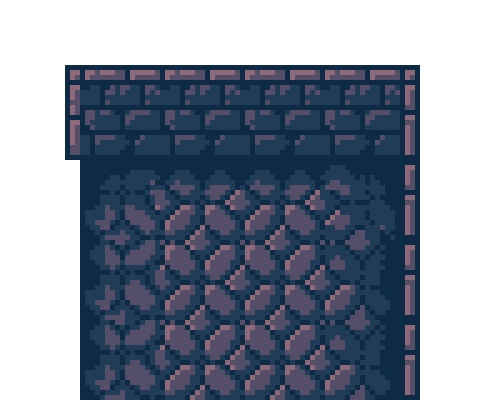
At this point I began experimenting with different visual themes and after getting some feedback on my ideas from friends I decided draw the sprites with a undead/vampire theme in mind. I used a colour palette of only 8 colours for the entire game.
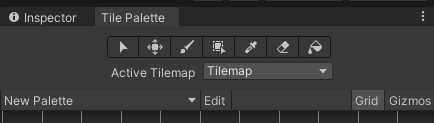
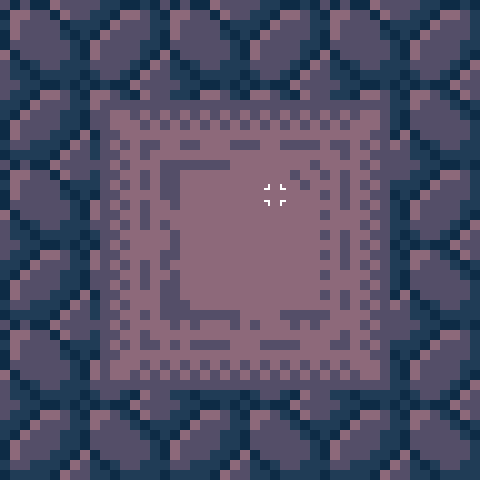
I drew the environment to look like some gothic castle or manor interior and the built in Unity tile map system made it incredibly easy to implement my tile sets into the game.
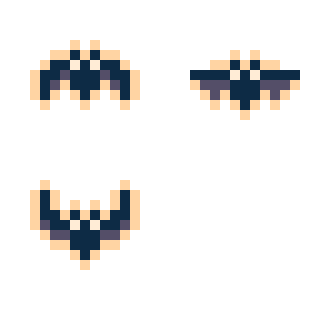
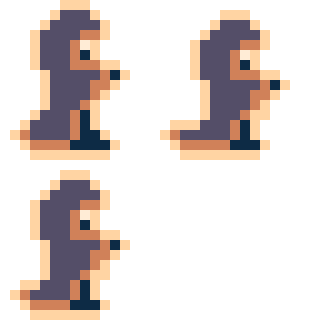
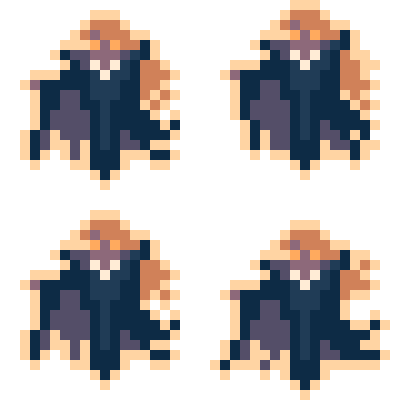
As mentioned before I used Unity’s animator to animate my characters which was a very streamlined process. The visual scripting style made it very intuitive and I quickly picked up how to set different parameters to enable transitions between different animation states.
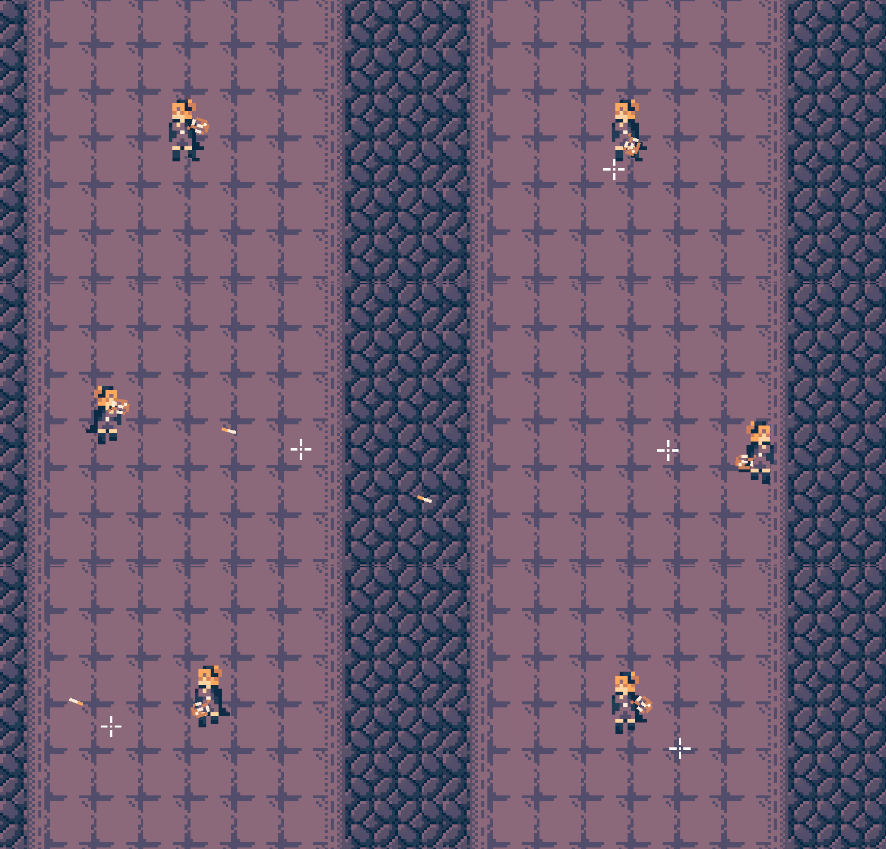
Overall I am extremely happy with how this game turned out. It took quite a lot longer to make than the other two up until now but I think that’s due to it containing more features and overall resembling a slightly more polished game. At this point I started building up quite a bit of confidence in my ability to code with C# and I developed a really steady workflow with Unity, I was no longer lost in the interface and I began coming up with ideas on how to make things better that I could actually implement, like the hp system.