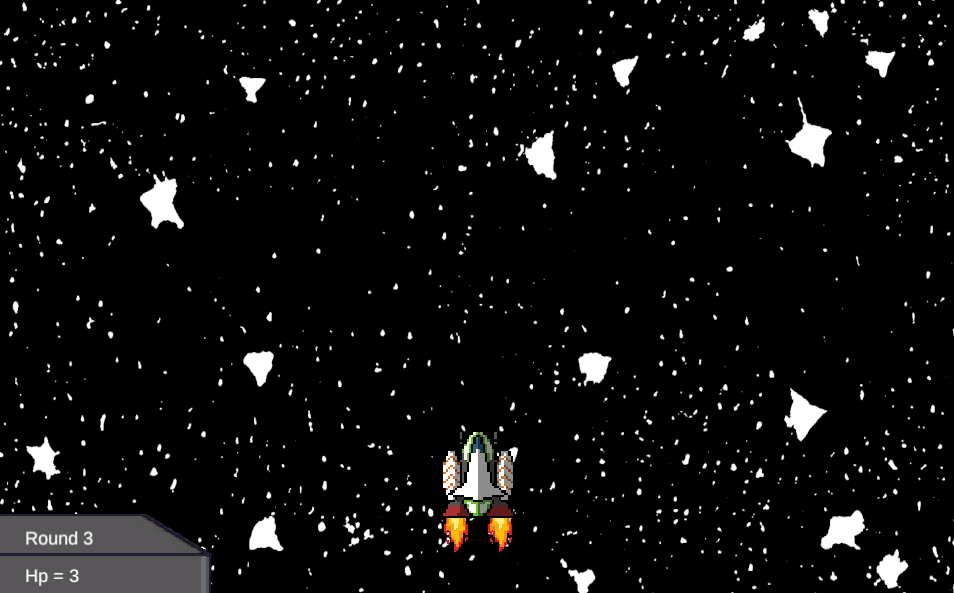
Link to HTML Build of my game on Itch.io :
https://friede0666.itch.io/spaceinvadersclone
The second entry for my portfolio of game prototypes is my Space Invaders clone.
Before I started working on putting the game together inside Unity I created some assets for my project. I decided to go with pixel art this time as I felt it would be the best option for what I had in mind for the game.
I designed some sprites for the player character (left) the enemy ship (middle) and the player bullet (right)



I started the project by working on the movement of the player character, after dropping in the sprite, tweaking some renderer settings and renaming the object to Player, I created a scr_PlayerBehaviour script and assigned it to the player object.
scr_PlayerBehaviour
using System.Collections;
using UnityEngine;

public class scr_PlayerBehaviour : MonoBehaviour
{
    //basic movement
    private float horizontal;
    private float speed = 4.0f;
    public Transform playerTransform;

    //dash
    private bool canDash = true;
    private bool isDashing;
    private float dashingPower = 10f;
    private float dashingTime = 0.4f;
    private float dashingCooldown = 1f;

    public float fireRate;
    private float nextFire;
    public GameObject bulletFired;


    [SerializeField] private Rigidbody2D rb;
    [SerializeField] private TrailRenderer tr;

    private void Update()
    {

        horizontal = Input.GetAxisRaw("Horizontal");

        if (Input.GetKeyDown(KeyCode.LeftShift) && canDash)
        {
            StartCoroutine(Dash());
        }
        if (Input.GetKey(KeyCode.Space) && Time.time >= nextFire)
        {
            Instantiate (bulletFired, playerTransform.position, playerTransform.rotation);
            nextFire = Time.time + fireRate;
        }

    }

    private void FixedUpdate()
    {
        if (isDashing)
        {
            return;
        }

        rb.velocity = new Vector2(horizontal * speed, rb.velocity.y);

    }


    private IEnumerator Dash()
    {
        canDash = false;
        isDashing = true;
        rb.velocity = new Vector2(horizontal * dashingPower, 0f);
        tr.emitting = true;
        yield return new WaitForSeconds(dashingTime);
        tr.emitting = false;
        isDashing = false;
        yield return new WaitForSeconds(dashingCooldown);
        canDash = true;
    }
}
First I declare the variables which directly influence the player movement, this included a float for speed, a float for a horizontal input and a variable for a Rigidbody2D component so that I could reference it from within the script. The RigidBody2D component contains attributes and properties such as the velocity which, when modified, can be used to move the object the component is attached to.
In the Update function the horizontal variable is set equal to Input.GetAxisRaw(“Horizontal”) which is an interface into Unity’s own input system. It returns a value of -1, 0 or 1 depending on if the player is pressing down one of the keys mapped to the definition of “Horizontal” which by default are either “a”, “d” or the left and right arrow keys. I used Input.GetAxisRaw rather than Input.GetAxis as it results in more precise, snappy movement rather than the floaty movement resembling momentum you’d get with GetAxis, which I felt wouldn’t really suit my game too well.
The code that handles the movement is inside the FixedUpdate method, which runs the code inside it a fixed amount of times per second, it is not tied to the framerate like Update which, if used for physics calculations, could cause issues of the player movement speed increasing as framerate increases.
The velocity attribute of the RigidBody2D component is set to a new Vector2, a structure type in Unity which contains an x and y value. The horizontal variable which has been assigned a value of -1 to 1 is multiplied by the speed variable and passed into the x value of the Vector2, the y value is left alone as the ship should not move on the y axis. This results in a smooth movement on the x axis depending on if the player is pressing down a horizontal input.
Initially I had the player move quite a lot faster but after receiving feedback from people testing out the game mechanics I decided to reduce the player speed and instead add a dashing mechanic to add some interactivity and variety into the movement. I did this with a coroutine that would lock the player into a faster sideways movement upon pressing shift and holding down a directional input. I added a trail renderer component and referenced it from within the script to emit a trail whilst the coroutine was running.
Next I added a mechanic of shooting a bullet from the player. To do this I needed to create a prefab out of the bullet sprite. Prefabs are reusable assets which already contain all of the components and property values of a game object. I made sure my bullet prefab had a BoxCollider2D on it and I set it’s type to a trigger.
For now I needed some way of spawning the bullet from the player, which I did by declaring variables for the fire rate and the next fire time, which I made floating point numbers so that I could use decimals. I needed a reference to the player Transform component so I declared a Transform variable and finally I needed a reference to that bullet prefab I created, so I made a variable to store a GameObject and assigned the prefab to it from the inspector. A conditional statement checking for the space bar being pressed would then instantiate the bullet prefab, meaning it would spawn a unique instance of the prefab I referenced earlier, at the location of the player. The same function would then set the nextFire variable to the sum of the current time and the fireRate, which I would then put back into the condition to make it check that the cooldown has passed before letting the player shoot again.
Now that I had a way to spawn the bullet in I needed a script to propel the bullet upwards on the y axis.
Scr_BulletBehaviour
using System.Collections;
using System.Collections.Generic;
using UnityEngine;

public class scr_BulletBehaviour : MonoBehaviour
{
    private Transform bulletTransform;
    public float speed;

    void Start()
    {
        bulletTransform = GetComponent<Transform>();

    }

    void FixedUpdate()
    {
        bulletTransform.position += Vector3.up * speed;

        if (bulletTransform.position.y > 7)
        {
            Destroy(gameObject);
        }

    }

}
I declared a variable for the Transform of the bullet and a float variable for the speed of the bullet. Since I declared the Transform as a private variable I would need some reference to it from within the script. Inside the Start method I set the bulletTransform to the Transform component of the game object this script is attached to, which in this case is the bullet prefab. I can then increment the position of the bullet from inside the fixed update method, with a variable to control the speed. To avoid the bullets flying out infinitely and potentially causing RAM issues I ran a conditional statement to destroy the bullet if it reaches a y position higher than 7; which is just off the screen.
Now that I had a moving player and the ability to shoot moving bullets I needed something for those bullets to collide with. I gave my enemy sprite a BoxCollider2D and once again made it a prefab so that I could instantiate it from within a script.
scr_EnemyBehaviour
using System.Collections;
using System.Collections.Generic;
using UnityEngine;
using UnityEngine.UI;
using UnityEngine.SceneManagement;

public class scr_EnemyBehaviour : MonoBehaviour
{
    public Text Timer;

    public GameObject Round1;
    public GameObject Round2;
    public GameObject Round3;
    private int roundNumber = 0;

    void Start()
    {
        Invoke("Wave1",2f);
        Invoke("Wave2", 10f);
        Invoke("Wave2", 20f);
        Invoke("Wave3", 30f);
        InvokeRepeating("Wave4", 40f, 1.0f);

    }

    // Update is called once per frame
    void Update()
    {
        Timer.text = "Round " + (roundNumber.ToString());

    }

    private void Wave1()
    {
        roundNumber = 1;
        Vector3 enemyRespawnPosition = new Vector3(0, 9, 0);
        Instantiate(Round1, enemyRespawnPosition, Quaternion.identity);

    }

    private void Wave2()
    {
        roundNumber = 2;
        Vector3 enemyRespawnPosition = new Vector3(-0.5f, 9, 0);
        Instantiate(Round2, enemyRespawnPosition, Quaternion.identity);

    }

    private void Wave3()
    {
        roundNumber = 3;
        Vector3 enemyRespawnPosition = new Vector3(-4, 9, 0);
        Instantiate(Round3, enemyRespawnPosition, Quaternion.identity);
    }
    void Wave4()
    {
        roundNumber = 4;
        Vector3 enemyRespawnPosition = new Vector3(Random.Range(-7,7), 9, 0);
        Instantiate(Round1, enemyRespawnPosition, Quaternion.identity);

    }

}
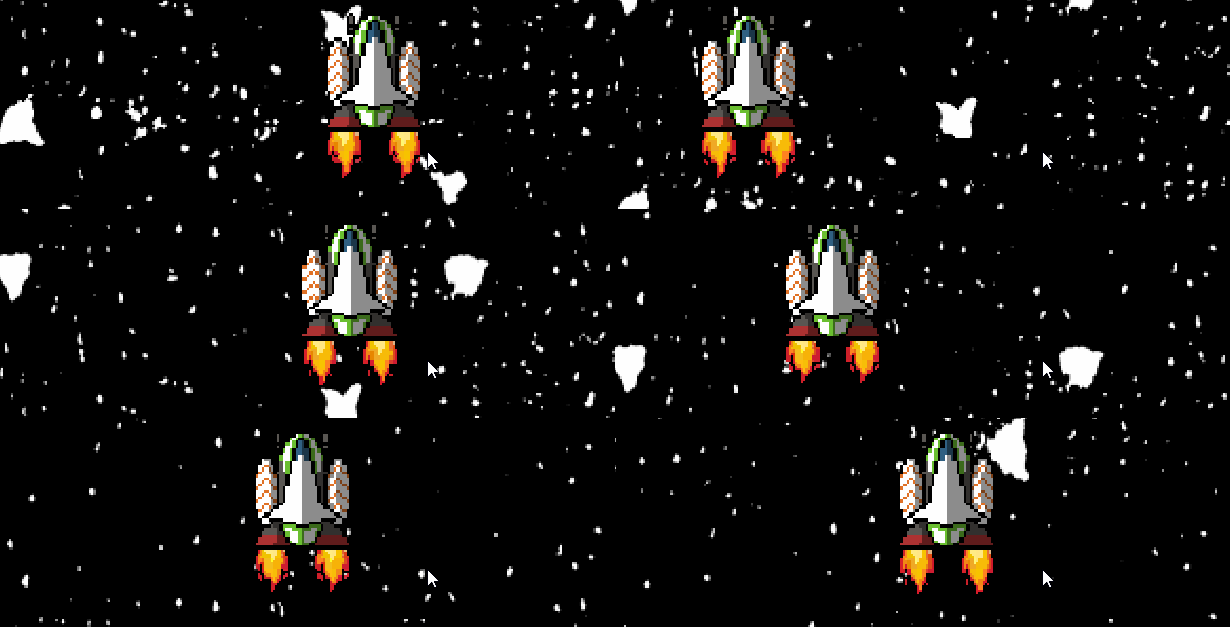
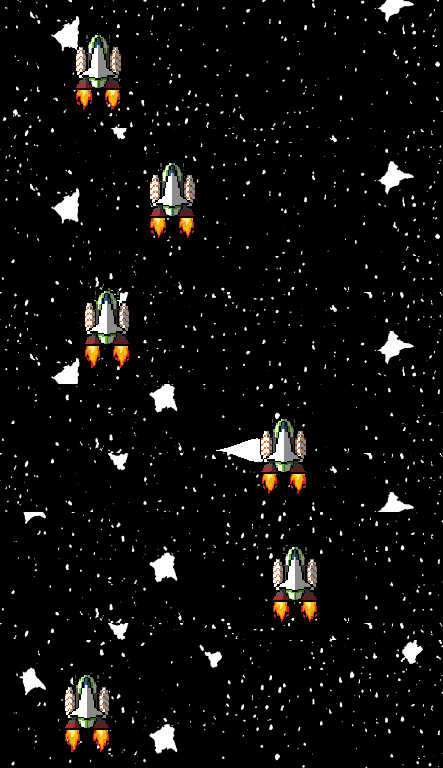
I took the approach of making my enemies spawn in rounds, where the rounds of enemies became increasingly difficult until in round 4 the enemies would begin spawning endlessly. I made a different prefab for each of the first 3 rounds, which I would Instantiate from within unique functions named after the specific round.
Initially I tried using conditional statements to call the functions, checking if the current time was equal to a certain value. This however brought a few issues like the time not resetting when reloading the scene so the enemies would not spawn again. I then tried to use the Time.timeSinceLevelLoad which I found on the Unity scripting API as a variable which gave the time since the level was last loaded, but that too brought up many inconsistencies which I now assume was because I put it inside the FixedUpdate method and it was missing the specific time values I was trying to check for.
After discovering the Unity scripting API however, I begin looking through it for methods I could use instead and I found the Invoke and InvokeRepeating methods, which would call methods after a delay. I thought this would make implementing my desired round system really easy as I could just invoke the individual round functions from the Start method, which would be called again on scene reload, solving my problem.
Inside this script I also made a reference to a text element in the scene which I made to show the current round number. I did this by creating and then setting a roundNumber variable after each wave. Inside Update I would then set the text component of the Text element to display “Round ” + (roundNumber.ToString());
scr_ArcSinMovement
using UnityEngine;
using System.Collections;

public class scr_ArcSinMovement : MonoBehaviour
{

    public float delta = 0.2f;  // Amount to move left and right from the start point
    public float speed = 2f;
    private Vector3 startPos;
    public float moveSpeed = 1f;

    private float roundedHeight;

    void OnTriggerEnter2D(Collider2D other)
    {
        if (other.tag == "Bullet")
        {
            Destroy(other.gameObject);
            Destroy(gameObject);
        }
    }

    void FixedUpdate()
    {

        Vector2 pos = transform.position;

        pos.y -= moveSpeed * Time.deltaTime;

        pos.x += delta * Mathf.Sin(Time.time * speed);

        transform.position = pos;

        roundedHeight = Mathf.Round(transform.position.y);

        if(roundedHeight == 4f)
        {
            StartCoroutine(WaveStop());
        }
    }

    private IEnumerator WaveStop()
    {
        moveSpeed = 0f;
        yield return new WaitForSeconds(4);
        moveSpeed = 1.5f;
    }
}
This script handles the movement of the enemies and all the collisions. I declared variables for the movement speed of the enemies and inside the FixedUpdate method I incrementally decreased the y coordinate of the enemy. Upon testing the enemy movement and receiving some feedback on it I decided to try make it a bit more interesting and I eventually settled on making the enemy oscillate with simple harmonic motion on the x axis. This was fairly simple to implement with the Mathf function, which let me use the mathematical sin function to generate oscillating values for my x coordinate.

From inside the FixedUpdate I checked if the y coordinate of the enemy was equal to a 4, in which case it would run a coroutine that set the movement speed of the enemy to 0 for a short amount of time. I thought this helped separate the different rounds of enemies from each other.
The last thing I did in this class was use the OnTriggerEnter2D method to destroy the enemies on collision with the bullet. The OnTriggerEnter2D method is inherited from MonoBehaviour and it is called anytime a Collider2D component collides with a collider of the Trigger type. I gave my bullets a unique tag within the inspector so that I could tell the enemy to destroy itself and the bullet object if it collides with anything with the bullet tag.
Scr_Trigger
using System.Collections;
using System.Collections.Generic;
using UnityEngine;
using UnityEngine.UI;
using UnityEngine.SceneManagement;

public class scr_Trigger : MonoBehaviour
{
    public int healthPoints;

    public Text hp;
    // Start is called before the first frame update
    void Start()
    {
        healthPoints = 3;
    }

    // Update is called once per frame
    void Update()
    {
        hp.text = "Hp = " + healthPoints;
    }

    void OnTriggerEnter2D(Collider2D other)
    {
        if (other.tag == "Enemy")
        {
            Destroy(other.gameObject);
            healthPoints -= 1;
            Debug.Log("Hp = " + healthPoints);
        }
        if (healthPoints == 0)
        {

            SceneManager.LoadScene(0);

        }
    }
}
I used this script to handle the player hp and lose state of the game. Before this nothing would happen if the enemies reached the bottom of the screen so I introduced a mechanic to decrease the player hp and eventually end the game. I did this by declaring variables for the player hp, including a Text variable for the displayed text and an integer for the actual hp value. The text component would be updated from Update() to display the current hitpoints, which would decrease if anything tagged “Enemy” would collide with a Collider2D at the bottom of the screen. I used the SceneManager class to reload the scene upon reaching 0 hp.
scr_Scroller
using UnityEngine;

public class scr_Scroller : MonoBehaviour
{
    [Range(-1f, 1f)]
    public float scrollSpeed = 0.5f;
    private float offset;
    private Material mat;

    void Start()
    {
        mat = GetComponent<Renderer>().material;
    }


    void Update()
    {
        offset += (Time.deltaTime * scrollSpeed) / 10f;
        mat.SetTextureOffset("_MainTex", new Vector2(0, offset));
    }
}
I tried a few different ways of animating the background texture to loop creating an illusion of player movement. First I tried spawning the sprites on top of each other vertically and moving them down, destroying them after then leave the screen and spawning new ones at the top, however I could not get rid of seams between the textures and it didn’t feel like a very efficient solution. After a while of browsing the scripting API and with a little help from a friend, I managed to come up with this script, where I would simply offset the texture of a repeating material from within the Update method.
Overall I am really pleased with how this project turned out and I feel like it has really helped me better my understanding of coding in C#. I felt like I was more confident using Unity this time, progressing with the project faster and therefore having more time to implement my own ideas into the prototype. If I had even more time I would implement a few more mechanics into the game like making the enemy ships move faster as the game progresses, different types of enemies which would have different hit point values, and more animations for the enemies and player.